Searchable history
Scan by day, filter by type, and jump straight to the clip you want without leaving what you are doing.
Vellum gives your Mac a calmer clipboard memory. It lives in the menu bar, slides in with Shift-Command-V, remembers text, links, screenshots, images, and files, and lets you find the thing you copied five minutes ago without breaking your flow.
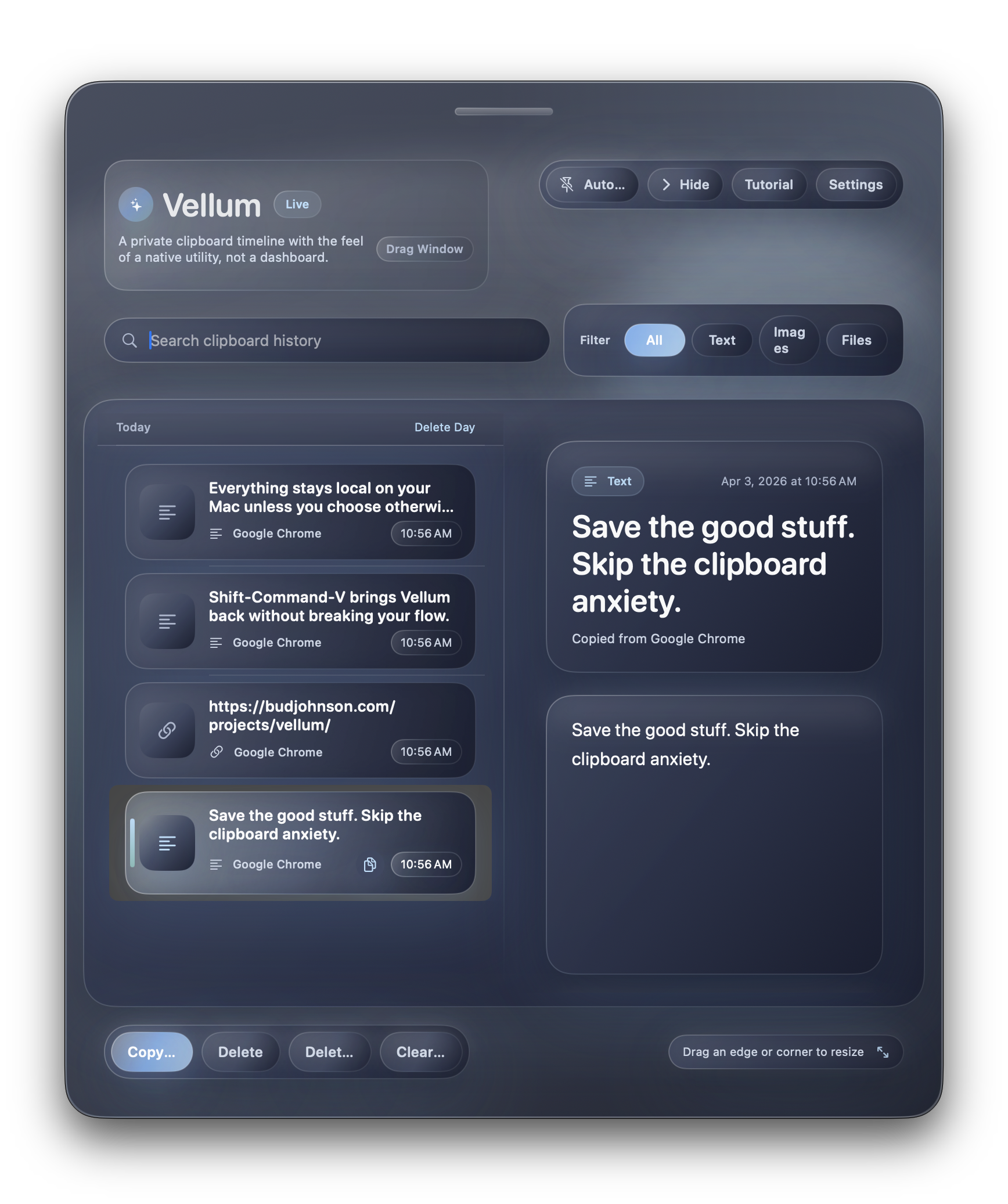
Vellum is for the moment when your clipboard betrays you: the link you meant to paste is gone, the screenshot disappeared into the shuffle, or the text you needed got replaced by the next copy. It brings that back in a way that feels more like a good Mac utility and less like a noisy dashboard.
Scan by day, filter by type, and jump straight to the clip you want without leaving what you are doing.
Vellum keeps the everyday stuff together, including screenshots that hit your clipboard or land on disk.
A stable slide-out panel, menu bar shell, keyboard-first workflow, and a preview pane designed to stay readable.
These images were captured from the live app during testing, then reused here as full-window and close-up thumbnails so you can see the interface before you download it.
This is the current preview build. Download the DMG, drag Vellum into Applications, open it once, and it will take up residence in your menu bar.
A private clipboard utility for macOS with searchable history, screenshot intake, preview, copy-again, and a calm slide-out panel.
Vellum runs as a lightweight local app bundle, not a Terminal-bound process. After first launch you should see it in your menu bar. From there:
1. Press Shift-Command-V to open the panel.
2. Copy normal things the way you already do.
3. Search or filter when you need to bring something back.
4. Use Return to copy it again.
If you are sharing this with friends or family, these are the exact steps they need. Nothing fancy. Just clean, clear install instructions.
Click the download button above and save Vellum-0.1.0.dmg anywhere convenient, like Downloads.
Double-click the DMG, then drag Vellum.app into your Applications folder.
Open Vellum from Applications. After launch, it should sit quietly in your menu bar and be ready when you need it.
Press Shift-Command-V to slide the panel in. Search is focused automatically so you can type right away.
You do not need to learn a new system to use Vellum well. The whole point is that it folds into habits you already have on a Mac.
Text from Notes. A link from your browser. A screenshot. A file in Finder. Use your normal copy workflow.
Use the menu bar icon or press Shift-Command-V. The panel slides in and the search field is ready.
Use the mouse or arrow keys to move through history. The preview pane helps you confirm you have the right item.
Press Return to bring it back to the clipboard. Delete items you no longer want to keep. Clear a day when needed.
Vellum is best when it feels invisible. These are the shortcuts that matter most once it is part of your everyday flow.
Call Vellum in from wherever you are working.
Step through the timeline without leaving the keyboard.
Put the selected item back on the clipboard immediately.
Dismiss the panel and get back to what you were doing.
Clipboard history touches sensitive material, so the app is designed around local-first behavior and clear control.
No. The current build is local-first. Your captured history lives on your Mac.
Yes. Vellum includes a pause state so you can stop capture during sensitive moments.
This preview build may require an extra confirmation step. If macOS blocks it, open System Settings → Privacy & Security, then click Open Anyway.
Text, links, images, files, and screenshots from both clipboard captures and saved screenshot files.
If you are the kind of person who regularly says “wait, what did I copy a minute ago?”, this is for you.